

How Do You Post GIFs on Instagram Story from Camera Roll?
Instagram stories stand out in the ever-changing social media landscape because they allow users to express themselves and share experiences and thoughts artistically.
Graphic interstitial files (GIFs) are a common technique for livening up these tales; they’re great for showing responses, emotions, or even just a little bit of humour, and they loop endlessly.
Unfortunately, Instagram’s UI isn’t exactly built for sharing moving pictures and videos, so you can’t add GIFs from your camera roll to your Instagram story.
You can add the captivating, dynamic allure of GIFs from your camera roll to your story with simple fixes and workarounds, even if this constraint is a barrier to creativity.
The “How to post GIFs on Instagram story from camera roll?” article will show you how to publish GIFs to your Instagram story.
So, are you ready for this exciting trip with us? If your answer is yes, let’s go to start.
Step-by-step guide for posting GIFs on an Instagram story from a camera roll
A GIF is a great way to give your Instagram story extra life and make it stand out. A workaround is required since Instagram does not officially permit uploading GIFs from the camera roll to stories.
We will teach you how to easily add GIFs to your Instagram story in a straightforward manner:
1.Convert your GIF to a video
Since Instagram stories only allow video formats, you must convert it into a video before posting a GIF on an Instagram story from a camera roll.
Download “GIF to Video” for Android or “GIF Cracker” for iOS to convert GIFs. These user-friendly applications are free on the App Store or Google Play.
Launch the app and choose a camera roll GIF to convert. Your app will help you through conversion.
After converting the GIF to video, could you save it to your camera roll?
This preparation is essential for effectively incorporating GIFs into Instagram stories and sharing more dynamic and interesting material with your followers.
2.Upload the video to your Instagram story
You can now publish your GIF-to-video Instagram story.
Start by opening Instagram on your phone. Swipe right from your main feed or press your profile image, indicated with a “+” symbol, in the upper left corner to start a new story.
Next, swipe up or press the gallery icon in the bottom left corner to open your camera roll and pick your converted video.
Select the original GIF video file. Instagram’s editing features let you add text, stickers, and drawings to your video to boost its attractiveness and message.
After you’re satisfied with your story’s appearance and feel, hit the “Your Story” button at the bottom to share it with your followers.
This approach adds dynamic images to your Instagram story, making audience engagement fun.
3. Using Third-Party apps for easier uploads
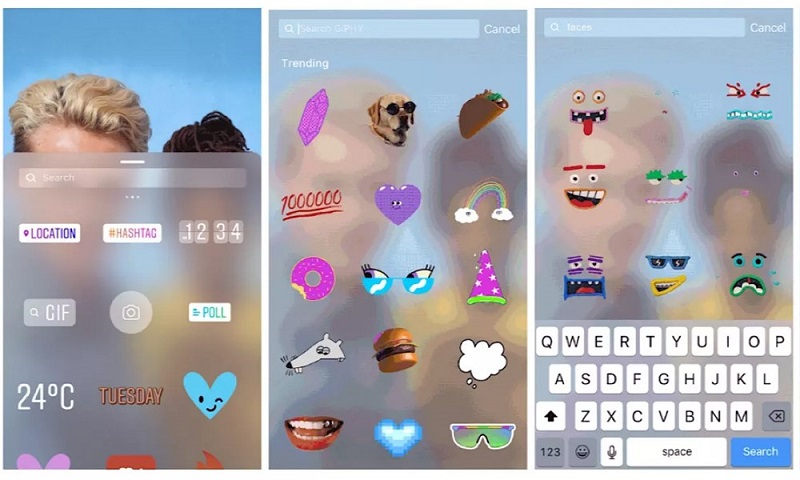
Third-party applications let users submit GIFs straight to Instagram Stories, bypassing the conversion procedure.
GIPHY, known for its enormous GIF library and flawless Instagram direct uploads, is a good choice. After installing it, launch the app to browse the many GIFs.
Select the GIF that best expresses your message. The software usually lets you submit your GIF to your Instagram story.
After this option, the software will lead you through upload prompts. This solution requires you to log into Instagram using the third-party app.
These programs make adding GIFs to Instagram stories easy and broaden your creative choices, letting you engage your audience with dynamic content without conversion or extra processes.
You can make your Instagram story more interesting and eye-catching by adding GIFs.
Follow these guidelines for adding GIFs to your Instagram story to make the most of this feature:
. Choose High-Quality GIFs
Before posting GIFs to your Instagram story, ensure they are clear and high-resolution. Quality GIFs make tales appear professional and interesting.
. Maintain Smooth Looping
GIFs converted to videos to post on Instagram stories should loop smoothly. Looping GIFs improve viewing and retain their essence.
. Keep It Relevant
Choose GIFs that match your Instagram story. GIFs should enhance your message for comedy, emphasis, or adornment.
. Use Editing Tools Creatively
Instagram has several editing options. Use them creatively. Add text, filters, and stickers to GIFs to make them more interesting after posting on Instagram stories.
. Consider Your Audience
Know your followers’ tastes. GIFs that relate to your audience boost engagement and pleasure when you post GIFs to your Instagram story.
. Optimize Loading Times
High-resolution and huge files might slow loading. GIFs that balance quality and download size will help your story load fast for everyone.
. Leverage Third-Party Apps
GIPHY has many GIFs and integrates with Instagram. Explore these applications for unique GIFs that are not in Instagram’s GIF collection.
. Stay on Brand
Choose GIFs to post on your Instagram story that match your business or personal brand’s image and values. Consistent stories boost brand recognition.
. Experiment with Custom GIFs
Try custom GIFs to post on Instagram stories for a personal touch or brand uniqueness. Custom GIFs may make your narrative memorable and enjoyable.
. Monitor Performance
Track audience reactions to story GIFs after posting. Instagram Insights can help you adjust content to audience preferences by revealing what works.
You can boost the quality of your Instagram stories by following these recommendations and strategically using GIFs to make them more vibrant and interesting.
Conclusion
Finally, sharing GIFs from your camera roll to stories on Instagram is easy, even if the feature doesn’t officially support it.
An easy way to add animated GIFs to your Instagram stories is to convert them to video format or use a third-party tool like GIPHY.
These alternatives keep GIFs’ initial allure and provide fresh opportunities for expression and interaction on a widely used social networking site.
Pick high-quality GIFs, consider who you’re posting to, and use Instagram’s editing tools to elevate your stories.
Make your Instagram stories stand out and leave a lasting impression on your followers by adhering to the procedures provided and remembering these recommendations.
Using GIFs in your Instagram stories is a fantastic way to grab people’s attention and engage with them, whether trying to express yourself, promote your company, or spice up your posts.
Now we think you are ready to share your thoughts and ideas with our readers and us and also talk about your experiences about “How to post a GIFs on Instagram story from camera roll?”










Leave a Reply