
Instagram Dark Mode Glitch: How to Fix the Issue?
Instagram’s dark mode item, which was presented in 2019, is a fantastic, helpful feature that can enable you to change Instagram’s theme and make the environment more comfortable for your eyes as you tend to explore Instagram at night.
While this item can be handy and beneficial to its users, users of this app tend to report glitches of dark mode on Instagram regularly.
In this essay, we will discover the main reasons for Instagram’s dark mode glitch and how to fix it with the possible solutions.
Let’s first discover what is Instagram dark mode and how we can use it:
What is Instagram dark mode & how do you use it?
Instagram dark mode is a great feature generated by Meta on Instagram to make users comfortable using it in low light. It can be helpful. You can use Instagram at night without getting irritated and itchy eyes.
To switch to Instagram dark mode:
- First of all, open your Instagram and go to your profile.
- Next, tap on three horizontal lines on the top right side of the page.
- Then, click on settings and privacy and scroll down to choose Accessibility.
- Finally, choose dark mode and tap “on” to switch dark mode on.
By adjusting these settings, you can change your dark mode on Instagram and enjoy surfing.
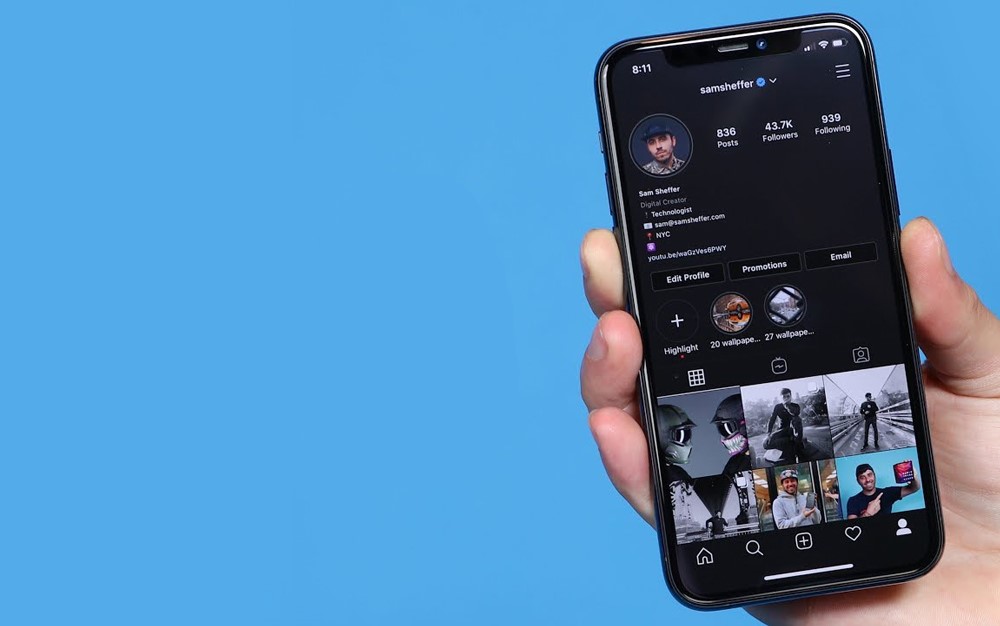
Why my Dark mode on Instagram has glitches & how can I fix it?
Many Instagram users have reported the glitches and bugs of Instagram’s Dark mode.
These glitches and bugs sometimes lighten up the screen partially while using Instagram’s Dark mode or suddenly lose dark mode, switching automatically to a light theme.
There are common reasons for this issue and various possible solutions you can use to overcome the problem. Continue. We listed them for you:
· Technical glitches & bugs
Several technical problems can cause dark mode glitches on Instagram.
Try visiting the Instagram website or other platforms to see if other users are experiencing the same issue. Read Instagram announcements on www.instagram.com to discover whether the new update of Instagram causes this issue and whether the Instagram team is working on resolving the problem.
So, update your Instagram to the latest version to overcome this problem, as Instagram may likely solve this issue in the newest versions.
· Corrupted cache data
A corrupted Instagram cache can also lead to issues and glitches in Instagram dark mode and slow the function of items on the platform.
Consider clearing Instagram cache to help Instagram’s function:
- First, open your phone’s settings and go to the Apps section.
- Find the Instagram app in the list of installed apps.
- Next, select clear cache to remove any corrupted cache that delays Instagram’s function and causes glitches on the platform.
· Restart your phone
Restarting your device can help improve the function of the applications and fix any glitches and bugs, such as the dark mode problem on Instagram.
Try restarting your device and waiting a few minutes before opening Instagram. Then, try opening Instagram and see if you can use the dark mode without any issues or glitches.
· Reinstall Instagram
Reinstalling Instagram can remove unnecessary data and cache and make the application the latest version without glitches or bugs, like the dark mode issue.
Try removing Instagram from your device and installing it from the Play Store (Android users) or App Store (iPhone users).
Log in to your account and switch to dark mode on Instagram; wait a few hours to see if it works properly without glitches or bugs.
· Re-switch to the dark mode.
Try turning off Instagram dark mode and waiting a few hours; then, use it to see if it works without glitches. This action can reset the setting and help the system function properly without glitches.
· Contact Instagram support
If none of the solutions mentioned worked for you, try contacting Instagram support and explaining your problem accurately and in detail.
The Instagram support team will investigate the cause of your account’s dark mode glitches and reply quickly to resolve the issue.
Consider placing screenshots of your problem to get a better result and answer from Instagram’s support team.
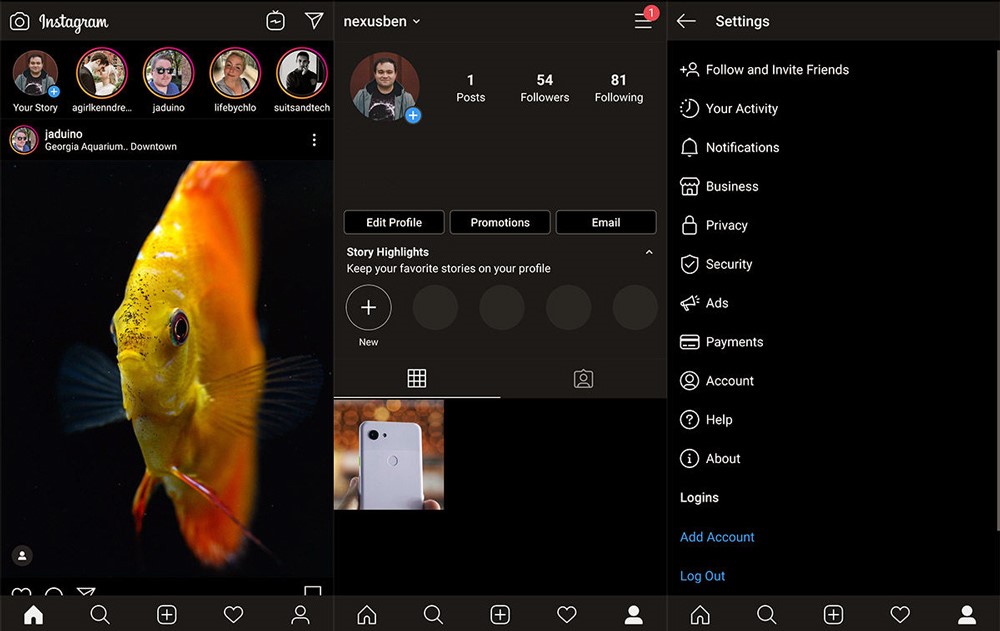
To contact Instagram support on your account, consider taking these steps:
- First, open the Instagram app on your mobile device.
- Then, go to your profile by tapping your profile picture in the bottom right corner.
- Now, open the menu and tap the three horizontal lines in the top right corner.
- Afterward, scroll down and select “Settings” at the bottom of the menu.
- In the Settings menu, scroll down and choose “Help” or “Help Center.”
- Here, you will find a list of commonly asked questions and topics. You can browse through these to see if your issue is addressed.
- If you can’t find a solution in the Help Center, scroll to the bottom of the page and select “Report a Problem” or “Support.”
- Now, you may be asked to choose a specific issue from a list or provide more details about your problem.
- Lastly, follow the instructions to report your issue or contact Instagram support directly. You can also visit Instagram’s Help Center website on a desktop browser at www.help.instagram.com
Conclusion
In conclusion, Instagram’s dark mode is an excellent feature generated by Meta that makes users comfortable and satisfied with the app at any time of the day. You can darken the theme to prevent itchy eyes.
However, this item may have glitches and issues, such as automatically brightening up and switching back to light mode for some accounts.
This essay discussed the main reasons for and solutions to Instagram’s dark mode glitch. Have you ever faced an Instagram dark mode glitch? What did you do to resolve the issue?
Share your experiences on this subject to inform other users about the possible reasons for and solutions to the Instagram dark mode glitch.
Let’s learn social online skills together!











Leave a Reply